To translate a PDF and keep its layout, use a translator that works on the file itself. It reads the text with its position on the page, translates it, and writes a new PDF with the same pages.
Then check the five places where translated PDFs usually go wrong. Here they are, with a real two-column test and the three steps in LINGUAE.
The five checks at a glance
| Check | Where to look | What a problem looks like |
|---|---|---|
| Longer text | The densest page, short labels | Cut-off text, overlap, small type |
| Two columns | First paragraph of a right-hand column | Starts mid-sentence |
| Tables | One full table, every number | A changed or missing value |
| Footnotes | Note markers, the reference list | Missing markers, notes in the body |
| Headers and footers | Top and bottom margins | Page numbers or titles inside a paragraph |
Before any of these, try to select a sentence in the original PDF. If nothing selects, the file is a scan: see the end of the next section.
Why a PDF is harder to translate than a Word file
A Word document knows what a paragraph is. A PDF mostly does not: it stores instructions like "draw these characters at this position". A paragraph is often a series of separate lines.
So before translating, the text has to be put back in reading order: which lines form a paragraph, which column comes first, where a table cell ends. The W3C guidance on PDF reading order explains that without correct tags, software can read two columns straight across.
Many PDFs have no tags at all, so the translator works the order out from the geometry of the page. That is why "upload and click" is only half the job.
Scanned pages. If you cannot select text in your PDF, it is an image of a page. An OCR tool has to turn it into text first. LINGUAE does not do OCR.
Five places a translated PDF breaks
These failure points apply whatever tool you use.
1. Longer text in fixed boxes
Translated text rarely has the same length as the source. The W3C article on text size in translation cites IBM figures: text over 70 characters grows to about 130 % of its English length, and very short strings can double or triple.
In a Word file, longer text pushes the next lines down. In a PDF, every block has a fixed place, so a paragraph that grows by a third still has to fit in the same rectangle. Short labels suffer most: table headers, form fields, chart captions.
2. Two columns read as one
A translator that reads straight across a two-column page joins the end of a left-column line with the start of the right-column line next to it. Each half can be translated correctly and the sentence still makes no sense.
3. Tables
Cell text can merge with its neighbours, so a row label gets translated together with a number. Or the numbers change: a decimal comma becomes a point, a unit moves, a value disappears.
4. Footnotes and references
Footnote markers are small and easy to drop. The note at the bottom of the page can also be read as part of the paragraph above it. In a reference list, author names and journal titles should not change at all.
5. Headers, footers and page numbers
Running headers and page numbers repeat on every page. A translator can insert them in the middle of a paragraph, or translate them on one page and not the next.
What this looked like on a real paper
We ran these checks on a 16-page psychology paper with two columns, footnotes and statistical tables, translated from English to French with the standard engine. Fast mode took 48 seconds on a MacBook M1 Pro, and the translated PDF kept the same pages and layout. The full test is in our research paper post.
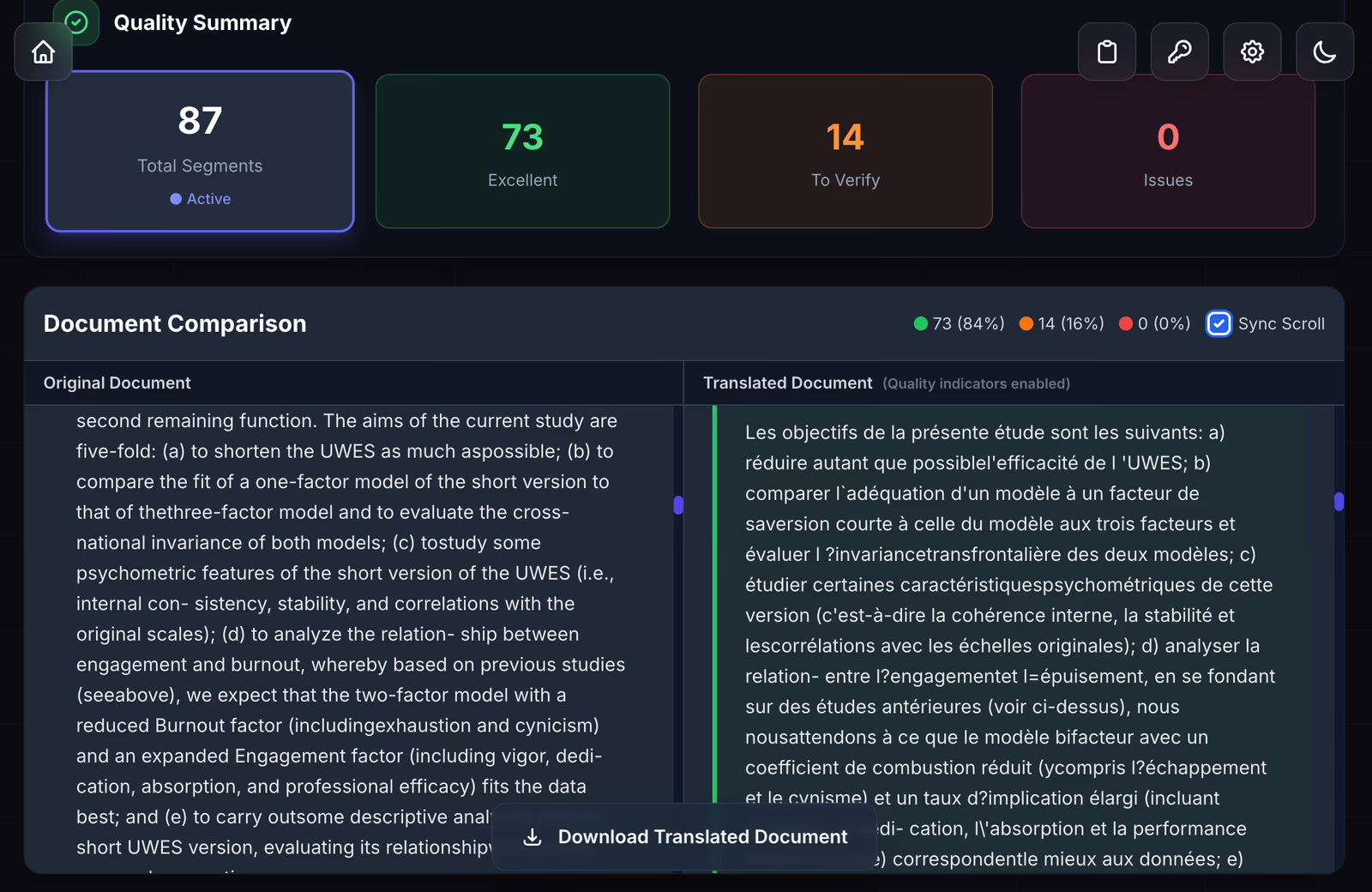
The review flagged 14 of the 87 segments. Most of those flags came from the layout, where blocks from the two columns sit side by side (failure point 2), not from a wrong translation. That is the pattern to expect on dense layouts: the meaning comes through, and the places to check are where the page is complicated.
Longer files behave the same way at a larger scale. Our 300-page book test shows timings for each translation mode.
How to translate a PDF in LINGUAE
LINGUAE is a desktop app for macOS, Windows and Linux. The translation runs on your computer, so the PDF is not sent to a server. The engines download once, on first use.
Step 1: drop the PDF
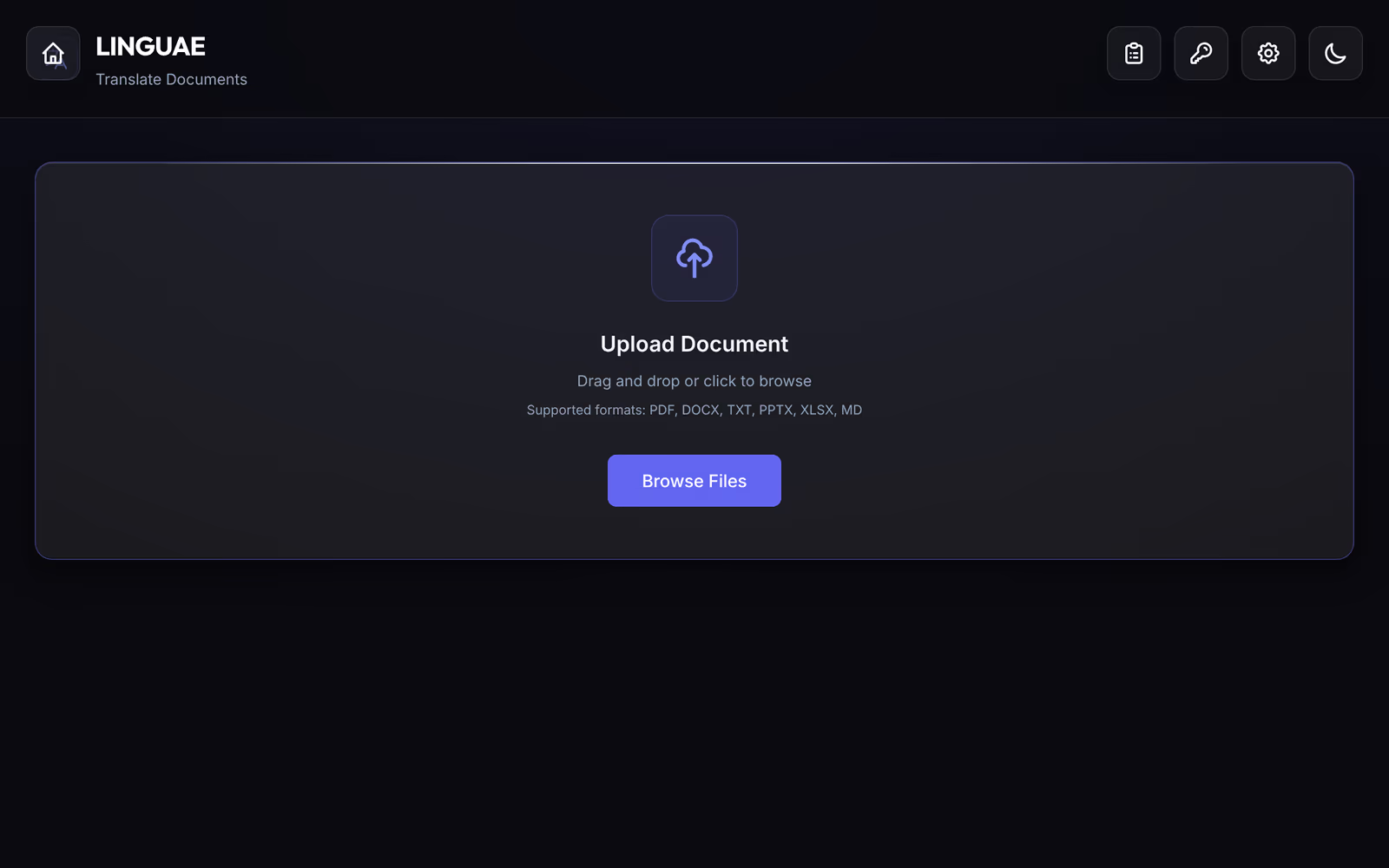
Open the Translate page and drop the file, or click Browse Files. The same zone accepts DOCX, PPTX, XLSX, TXT and MD.
Step 2: choose the languages and start
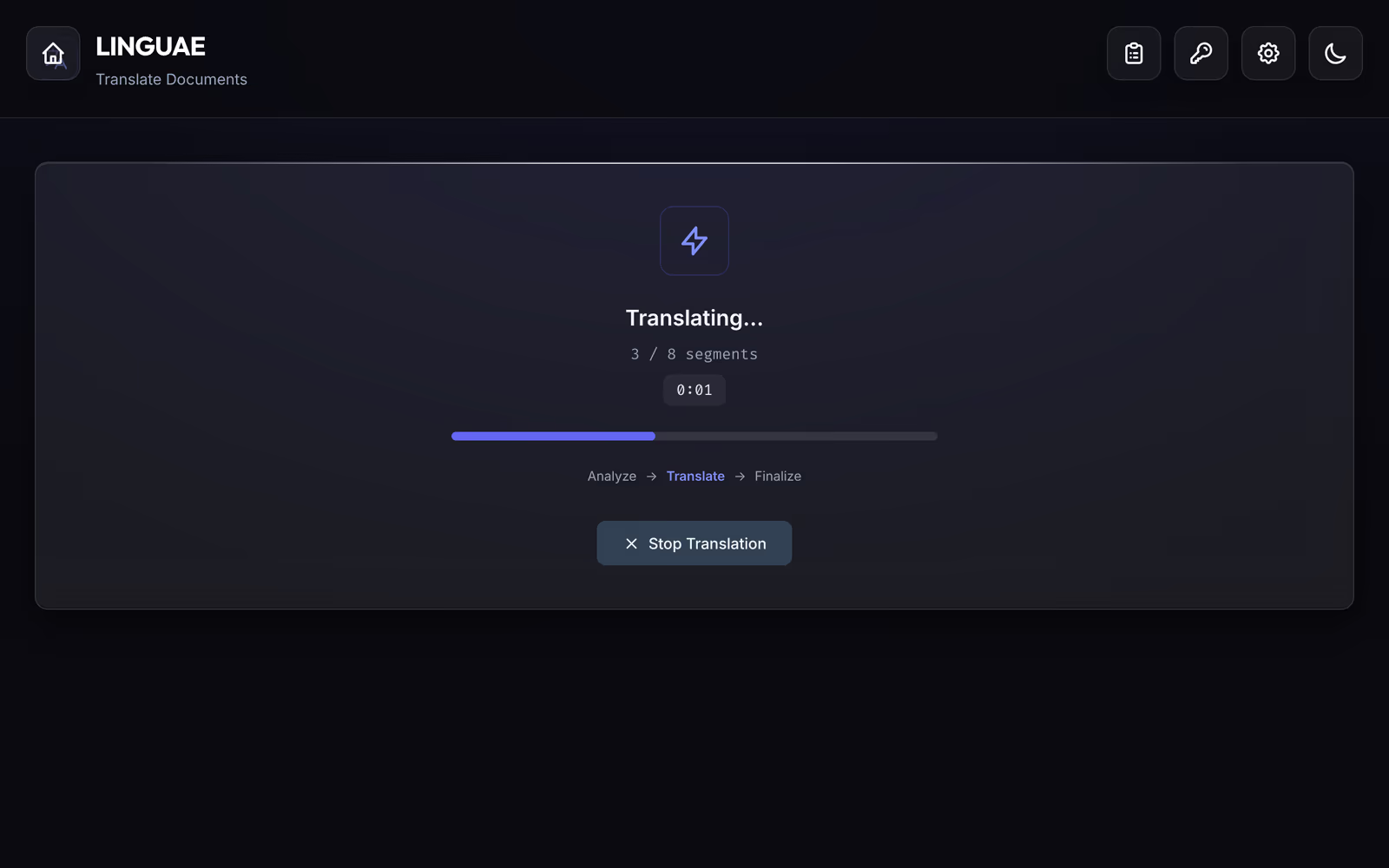
Pick the source and target languages; the list is searchable by name or code, such as fr. Choose a mode (Fast, Balanced or High Precision) and click Start Translation.
The standard engine, on every plan, covers 1,190 language pairs. Some targets, such as Japanese, need a premium engine (Pro).
Step 3: review and download
When the translation ends, download the file. On Pro, the Quality Comparison view puts the original and the translation side by side, segment by segment. Each one is labelled Excellent, To Verify or Issues, and Sync Scroll keeps both panes aligned.
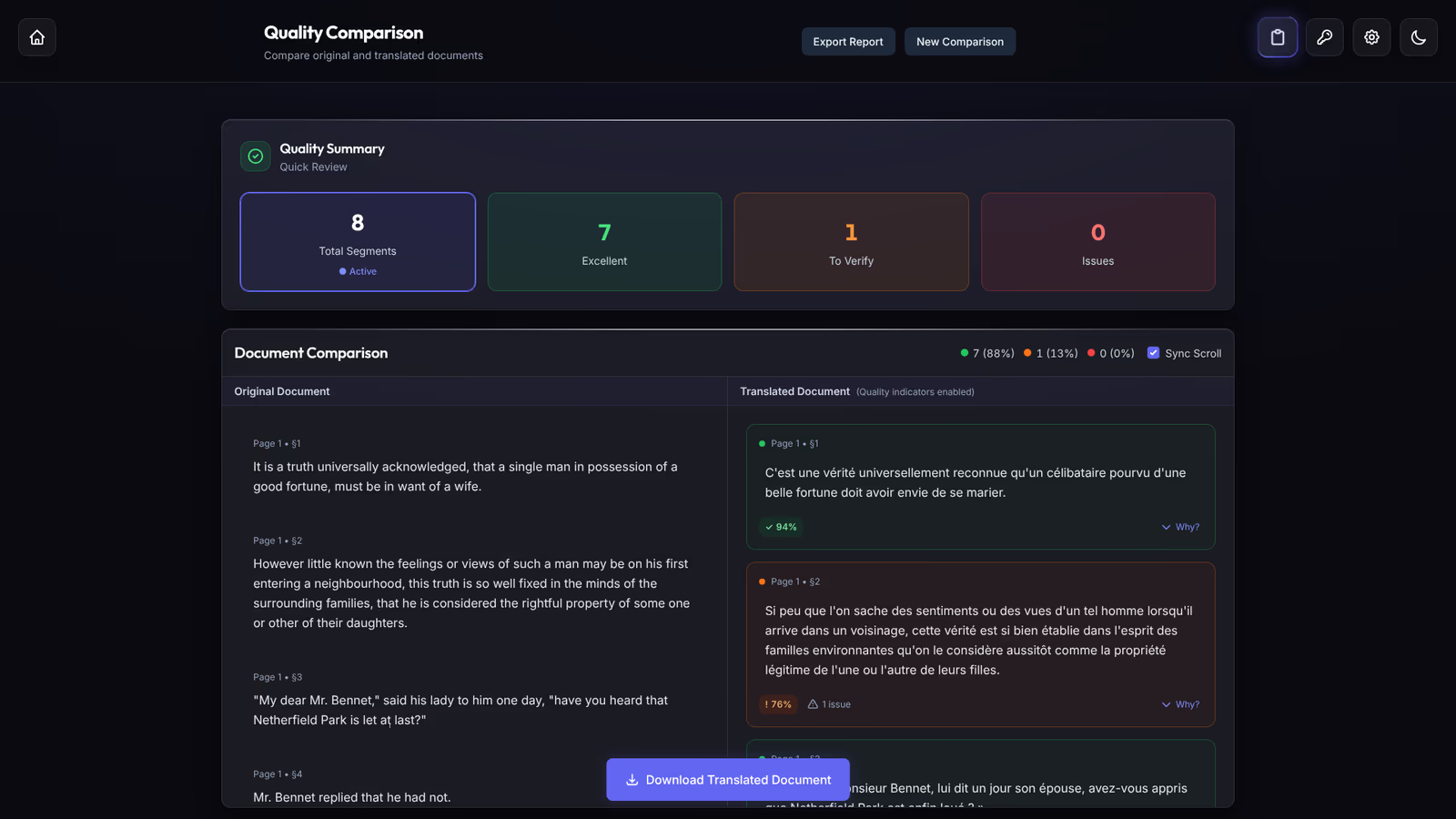
To fix a sentence, double-click it and edit it in place. Download Translated Document exports the file with your edits. On an Apple Silicon Mac, Deep Review (Pro) reads each segment again on your computer and points to sentences whose meaning differs from the source.
Questions
Can I translate a scanned PDF?
Not directly. A scan is an image, and LINGUAE needs text. Run the file through an OCR tool first, check that the text can be selected, then translate the new PDF.
Should I convert the PDF to Word first?
Only if you already have the original DOCX. Converting a PDF to Word faces the same reading-order problem and adds a step where things can break.
Is my PDF uploaded anywhere?
No, the translation runs on your computer. The app connects to activate a license and to reserve a credit when you pay per document; the document stays local. Our article on offline and cloud translation compares the two approaches.
Getting started
Download LINGUAE, drop a PDF you know well, and run the five checks on the result. A file you have read in the original is the fastest way to see how a translation handles your kind of layout. The PDF translation feature page lists what the app is built to keep.